In short
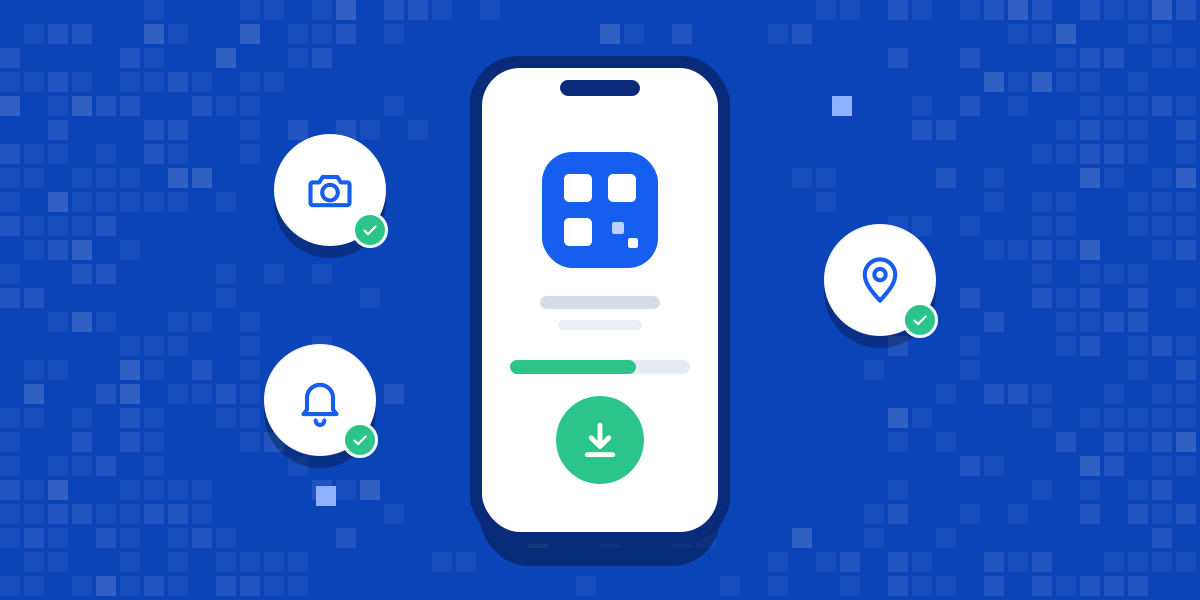
On an Android phone, QRLog installs in a few minutes: download it from Google Play, sign in, grant the permissions and scan the QR code at your workplace.
Before you start
You will need:
- An Android phone and an internet connection
- The sign-in details from your manager
1. Download from Google Play
Open Google Play, search for QRLog — Davamiyyət Sistemi and tap Install. When the download finishes, open the app.
2. Sign in
Sign in with the details your manager gave you. If you have not received them, ask your manager or your company’s administrator.
3. Grant the permissions
The app may ask for three permissions:
- Camera — to scan the QR code and take the check-in photo
- Location — to confirm that you are at your workplace
- Notifications — a reminder so you do not forget to check out
Without the camera and location permissions the check-in checks cannot be completed, so make sure you grant them.
4. Make your first scan
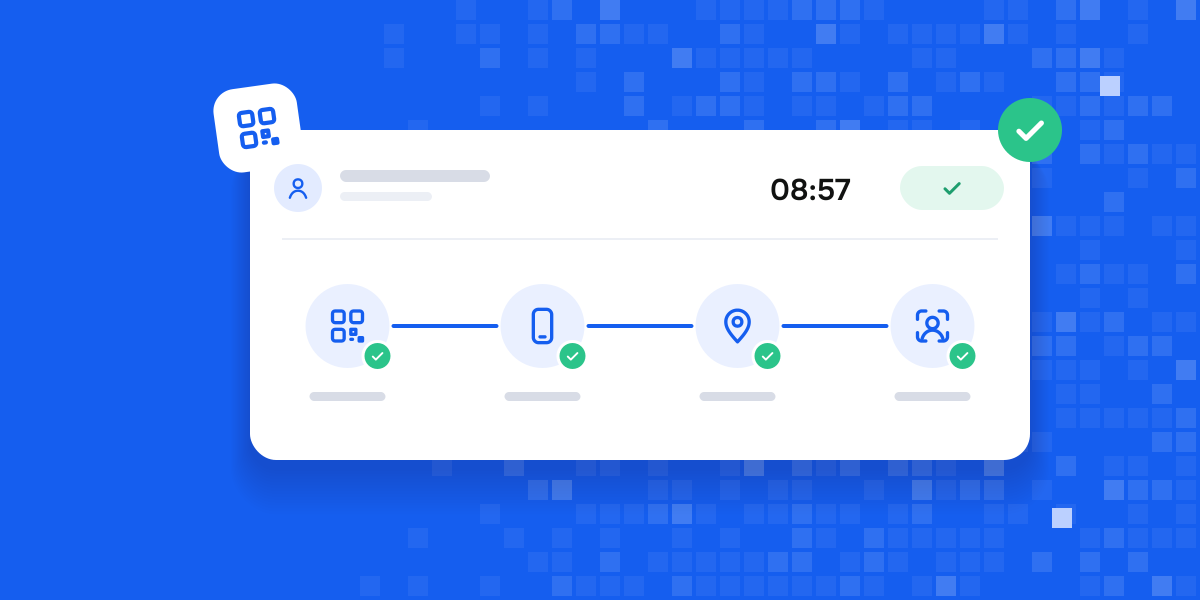
Go to the QR poster at your workplace, tap the scan button in the app and point the camera at the code. After a few seconds you will see the check-in confirmation on the screen. At the end of the day, scan to check out in the same way.
Frequently asked questions
The location looks wrong, what should I do? Make sure GPS is turned on, move from inside the building to an open area, wait a few seconds and try again.
There is no internet, can I still scan? Yes, QRLog has an offline mode. The record is sent to the system when the connection is restored.
For iPhone users
The App Store version for iPhone is in preparation. We will add the guide to this article when it is ready.
How would QRLog work in your team?
Ask us on WhatsApp and we will reply.